Tuesday, November 10, 2015

Web 2.0 Tool QR Codes

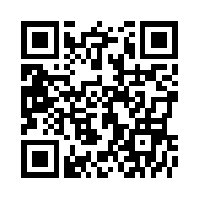
A QR (quick response) code is a scannable code that allows the user to receive information on a mobile device.  This 2.0 tool was the easiest to create and use.  Now this is the way technology should work for teachers!  I used qrstuff.com to create my QR codes.  In about a minute I created 3 to 4 QR codes that got my creative juices flowing on how I could use these codes in my lesson plans.  I love how the site has all 4 steps numbered and all the various data types you can plug in are displayed on the front page.  I also love how you can create color QR codes.

The first QR code I created was to my Blabberize.  After scanning my QR to make sure it worked I noticed that the code would only get me to the Blabberize website, this was a bit of a let down.  I also created a QR code to link to a fruit vocab. Quizlet which worked great.  The last QR code sample I created was a link to my digital story on YouTube and it worked!
Some ideas I have for using QR codes are to have them on top of a verb activity worksheet and if a student is stuck with verb conjugation they can scan the code to reveal the verb conjugation or a link to a verb chart on-line.
I can also create vocabulary review worksheets with QR code links to my vocabulary Quizlets that can aid students.  I could also QR codes around the classroom at various stations where students would have to watch a video clip or song and answer questions.  QR codes would also work for ice breakers and trivia or cultural units.  Students could could create their own QR code trivia game, the possibilities are endless!
Lastly, I could use QR codes to showcase students work to parents 
and other students in the school. It would be fun and educational for all students to be able to view a presentation or project created by the Italian classes at Roosevelt.  I rate this 2.0 tool 10 out of 10 for being user friendly for both teacher and students!
                                              Sample QR codes:


Monday, November 9, 2015

Web 2.0 Tool Wordle


My second 2.0 web tool is Wordle.  Wordle creates “word clouds” from texts that one provides.  There are numerous ways to edit the design of the Wordles, from color schemes to font style to how the words are displayed by size and direction.  I have seen world clouds for a few years now and over the summer I even created a few with another program, but I have not used word clouds in my classroom. I plan on doing a few Wordle driven activities this year.  There is a lot to like about “word clouds” especially for foreign language class.  Students can turn those boring lists of nouns, adjectives, and verbs into something creative and pleasing to look at!  Students could also personalize their Wordle by using adjectives that describe him or her.   There is a cool feature on Wordle that allows certain words to to stand out more in the word cloud the more it is typed in the text box.  I made a sample below by typing my name 10 times and other words I feel describe me, numerous times.  It is so inspiring to look at a picture created by words!


I did have a  few small glitches when creating a Wordle.  I had to download Java which took a few minute and I was not able to pdf my Wordle.  I did a bit of research but nothing seemed to work so I just ended up taking a screen shot of my Wordles.  I feel students could use Wordle easily, the only reminders I would make when creating a Wordle are not to have a black background if you print so as to not waste ink and also double checking spelling. I rate it a 9 out of 10 for being user friendly.

I can see my students creating Wordles in the target language about:

  • Foods they like
  • Adjectives that do or don’t describe them
  • Regions of Italy as a review project
  • ARE, ERE, IRE verbs
  • Irregular past participles 
  • Articles of clothing that go with each season
  • Items that go in each room of the house 

Web 2.0 Tool Blabberize


I love the idea behind Blabberize and I could see it being used in the foreign language classroom in countless ways.  Blabberize takes a picture and let's you add a moving mouth and voice to the picture. I chose to try it out using the face of Venus from the Birth of Venus painting by Sandro Botticelli.  I have to be honest and say it took me over 2 hours to get this done from beginning to end. At first I was excited to find out that my foreign language department already had a Blabberize account so I thought GREAT I won’t have to waste time setting up an account.  I quickly located a picture, did some research on the painting and wrote up a script. I uploaded and cropped the picture, pressed the crop mouth button and put the pink oval over Venus’s mouth.  I then hit the record button.  I found the record button difficult to navigate and I really could not tell if I was recording or not because the mouth keeps moving either way ?!?
I also noticed I could not get Venus to open her mouth realistically, after trying a few times I left well enough alone.  I ran in to difficulty after I completed the recording.  The website said it's main server had crashed that day but was back up and running, unfortunately it was running very slow and not allowing me to save my recording.  I must have tried over 10 times and each time I tried I had to re download the picture and re record the script!  I then closed down my computer, walked away, and had dinner.  An hour later I tried the website through Firefox.  I reread my script and in the end I was able to save it!  Since I know my students are tech savvy I am sure they can figure out how to maneuver the mouth cropping and then go on to show me.  I also did not figure out how to embed the video on to my blog so the link will have to do.  I give this 2.0 tool a 6 out of 10 for being user friendly.

I can see my students using Blabberize for Introducing:

  • Famous Italian Designers
  • Animal projects
  • Family members
  • Famous historical figure
  • Famous Italian Artists
  • Famous Italian painting
    Venus from the Birth of Venus painted by Sandro Botticelli
My Blabberize

Tuesday, November 3, 2015

My First Digital Story ... Basic and Usable

When I heard our next assignment was a digital story I quickly started to brain storm on how I could use my movie as a teaching tool for my Italian classes. While I began to brain storm with my fellow language teacher we paused to view sample digital stories in our class.  I have to admit that while watching the digital stories in class I began to feel a bit intimidated.  They were moving, had great pictures and music and so well done!  Could I get my video match up to the sample ones?  

After thinking about various topics such as a day in the life of an Italian teacher, creating a cooking segment or even making a collage of family pictures to share with family over the holidays. I decided to create a digital story for my 8th grade Italian class.
Since we had just completed a chapter on the home I decided to have students view my digital story as an example.  The language I use is basic and understandable for a middle school language class.  I also repeat words often so students have ample opportunity to listening to vocabulary words they have already learned. I also turned the digital story into a listening activity and students wrote down all the action verbs and rooms of the house they heard.

Students are now making their own digital story using iMovie. They are taking pictures of their home with their iPads and with cues that I provided, students  are also writing up a script on google docs. We will share the videos in class at the end of the month.  I am certain their digital stories will be creative and well put together!

I used iMovie on my iPad to make my digital story. The process was fairly straight forward and user friendly once I figured out how to time my script to the pictures.  I decided not to add music because I was excited to have my voice actually record and I was scared that adding on another layer  I would get stuck fiddling with it for hours.  In my next film I will try to use music.


Uploading is where I found problems. I tried to upload the video on to YouTube.  This did not work the first time so I went to a tech person and she advised me to upload it to my Google drive.  From there we created a link on the class Wiki page.  We tested the link a couple of times, I also asked a fellow teacher to see if she could see it on the Wiki page.  She could.  I was happy the assignment was complete!  Fast forward 4 hours later and I notice that the video does not start from the beginning and the link seems to be broken.  At this point I was in class, frustrated, and just ready to go home.  When I got home that night I tried up load it up to YouTube again.  Listening to the instructor in class that evening I realized I had YouTube account since I have a school Google account.  In class I also learned where the embed button was on YouTube. I was then able it uploaded it to YouTube and then went on to embed it to the Wiki page by 10pm that night.  Better late then never, I guess.  I am happy I was able to figure it out myself even if it was after class.  I was also excited to be able to use this project in my classroom.  On to the next technical adventure!

Thursday, October 15, 2015

#Langchat


First Tweet in #LangChat!
Mission completed! I just participated in my first live chat.  It was not as scary as I thought it would be. I jumped into #langchat. It was interesting to see people from all over the world join in. The chat was well organized and one teacher went on to explain how to answer the various questions being posted.  For example A1 to answer the first question A2 to answer the second and so on.  After having class last night I understood that after each tweet I need to add the #langchat.  I would not have done this prior to last night!  I also made a slight faux pas on my first tweet (as you can see in the screen shot). I tweeted to several participants as well as to the chat.  I soon realized this and corrected my following tweets.  I was excited to see 3 people favorited my second tweet!!  

The chat lasted an hour and 3 question were asked.   I am glad I waited a couple of weeks to participate in a live chat so I was able to get a handle on how to tweet, retweet, refresh, and know the difference between top and live. I would definitely participate in a live chat again.
Second Tweet

Wednesday, October 14, 2015

#Overwhelmed.


OMG Twitter O.M.G. Let me start with what I love:
     The amount of information, quality articles and essays that you can delve into is insane.  When I start reading one article I quickly find a second or third article tweeted underneath calling out to me.  I find myself rushing through what I am reading so I can start reading something else that looks just as interesting.  Then I suddenly have the need to share this interesting piece of information so the retweeting begins! You can follow me @312Giuliana. I also found the web site paper.li which puts articles and links from Twitter in a newspaper format, I find this so much easier to follow!   This was reweeted by Don Doehla ‏@dr_dmd.  Two great resources on the  paper.li site are edutopia.org and morganmfl.weebly.com 

     My other favorite education feeds so far are @npr_ed , ‏@lingholic.  I also enjoy looking at the more lighted hearted feeds such as @calabriaonline, the content on this particular feed brings up great memories of living in Calabria.  I love that the daily activities which are so particular to this region are being documented with pictures and shared for all to see.  

https://twitter.com/calabriaonline

Traditional Calabrese fig sweets. Photo credit


Olives ready to be harvested.  Photo credit


I also love the collaborative and networking aspect of Twitter, it is wonderful to see so many educators wanting to share their knowledge with the world. 

Now for the parts that are making my head spin:
     The amount of TIME Twitter is taking away from my other responsibilities.  I understand that this may be because I am new to Twitter so I may be over indulging, I feel that when I open my feed, 30/40 minutes just fly by.  I hope to get to the point where I can check Twitter for a few minutes a day and move on with life.  I am also surprised when I see people follow me.   I now feel a bit of pressure to post. 

     I am also having issues participating in a Twitter chat, I am not sure if I get on at the wrong time or I am simply not finding interesting ones where I feel I can contribute something worthwhile to the discussion.  So far the only chat I have found is #langchat and most of that content is specifically Spanish or French. I feel odd just jumping in with an Italian tweet, I do not feel comfortable adding my commentary if I don't think what I am saying is authentic.  I hope to have time to discuss live chats with my department members and see if they have found other chats to participate in.  I ideally I would love to find an Italian teacher chat. 


Technical issues:
Where are my re tweets going?
     One last thing that is driving me insane is not being able to find my retweets I hash-tagged to #edu776nz.  Even the tech person I spoke with couldn’t tell me why my retweets were not showing up on #edu776nz feed, out of a dozen retweets I have posted only 2 have shown up on the feed.  


As I settle in to Twitter I see myself using it to keep up with education articles, authentic resources from Italy and perhaps connecting with other language teachers to share resources.  


Update: I'll be participating in #langchat Thursday! See below.


 One step closer to an Ed chat!


Tuesday, October 6, 2015

Was I coding in the 80‘s?

     
http://salestores.com/elmo9419.html
Old Technology  photo credit

     My first experience with a computer if I really stretch my memory came around the age of 12 or 13.  My grade school obtained computers and once or twice a week I would go to computer class where I could type in a series of numbers such as 10 go to 20 repeat to 30 load and then type the most important word RUN.  After I hit enter I would have words scatter across the screen or some color picture I had created through code would emerge.  Fast forward 30 years and I am signing up my daughter for a coding class when I realize, “ wait that’s how you code? I think I did that in the 80's!”

   After that short introduction to computers in grade school I moved to Europe during my teen years where computers were no where. NO WHERE.

     Returning to the States to attend college I definitely used computers for personal use and considered myself at Stage#2: Adoption.  I was never negative towards technology as some of the bullet points in Stage#1 seem to lean towards, but I would categorize myself as Novice or Entry level.  

My obssesion in 2011  photo credit
     I had to laugh when I read some of the of the bullet points in the different stages and the memories that sprang up. I remember receiving my first computer for the classroom and being warned by administration not to have students touch it (Stage#2).  I also had students write up drafts of assignments and then take them to the lab to type them up-What was I thinking!(Stage#3).  Lastly I remember begging my department for a cool Elmo projector - I used it for about a year(Stage#4).


     Reading through stages# 2-5 I could easily see at least one bullet point I could apply to the way I view or use technology.  I feel I am now between Stages #4 and #5 but I also feel there is a big jump between these the two stages.  I also believe that depending on what new tech tool you are learning or how you use technology you can often be moving to and from various stages.  I definitely enjoy having students use technology to enhance learning and to use it to obtain knowledge on a subject matter that they could not easily reach without it.